
Quick Start
Your first working door in about five minutes. No code.
1. Try the demo (1 minute) #
Open Samples/Scenes/InteractionKit_Demo3D and press Play. Walk with WASD, look with the mouse, and press E
(or X / Square on a controller) at a door. Things to try:
- the Physics Door: walk into it and it swings open;
- the Locked Door: pick up the red key first;
- the Hold Door: hold the button until the ring fills;
- behind you: cabinets, drawers, a bookcase and a fridge, all made with the Setup Wizard.
2. Make your own model interactive (2 minutes) #
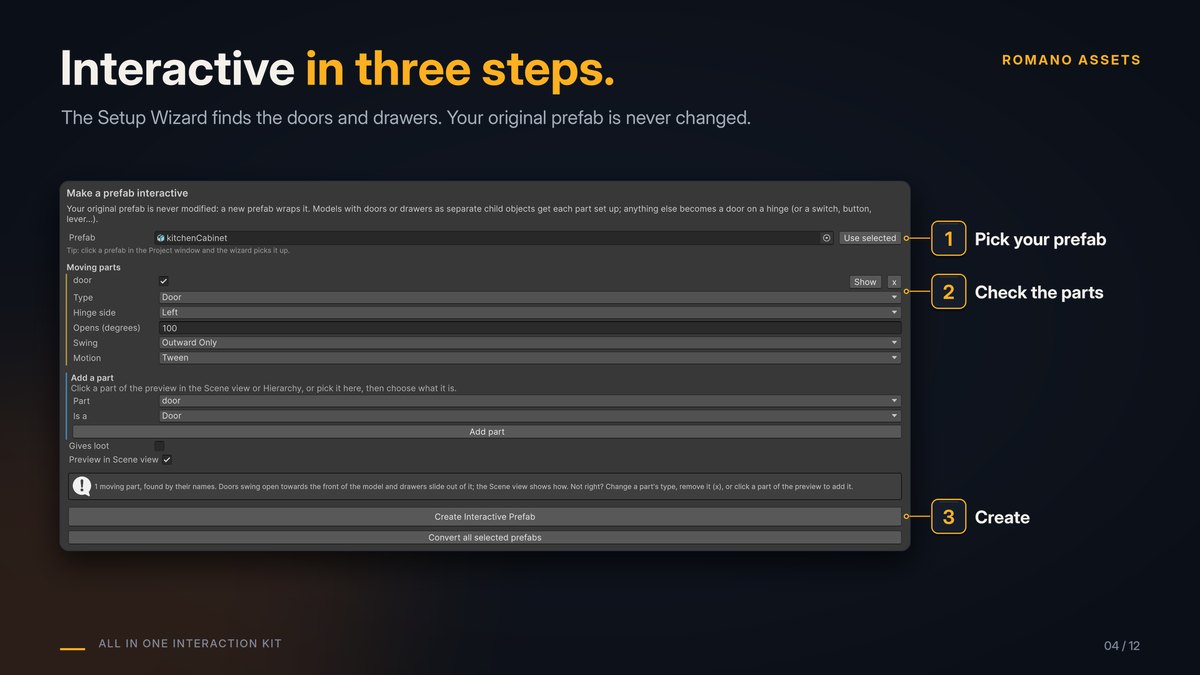
- Tools > All In One Interaction Kit > Setup Wizard.
- Drag your prefab or model into Prefab. - Furniture with doors or drawers as separate child objects (named like door, lid or drawer): the wizard lists each moving part. Check the type and hinge side of each. - A single door: pick the Hinge side. The wizard tells you if the pivot is in the middle (it will fix that).
- Click Create Interactive Prefab. A new prefab appears next to your original; your original is never changed.
3. Set up the player (2 minutes) #
On your player (or the demo's Player prefab as a reference), add:
- Interactor, and set its Origin to your camera.
- Look Ray Discovery (first person) or Proximity Discovery (third person, top-down).
- Key Interaction Input (E key and a gamepad button). With the Input System package you can use Input Action Interaction Input instead.
- Add an empty GameObject to the scene with Interaction Prompt (No Packages) and, for first person, Interaction Crosshair.
Drag your new prefab into the scene, press Play, look at it and press E.
Something not working? #
Add an Interaction Debug Overlay to the scene and press F3 in Play mode: it shows what the player is looking at and exactly why it can't be used. More in Troubleshooting.