
Place Tab
Every Place mode shares the palette below its controls.
The palette #
Every piece of every visible kit, as a thumbnail: favourites first. Drag a piece to another place in the palette to put it there (your own order comes first; the Prefab Builder's ⋮ menu puts it back); dragged into the Scene view, it's placed.
- Search by name; filter by kit and category; ★ shows favourites only; the slider sizes the thumbnails (about: they always grow to fill the width of the window).
- Recent: the pieces you used last, in a strip above the grid.
- Click a piece to make it the active piece (the Place tab opens if it wasn't showing).
- Drag a piece into the Scene view: while you drag, its ghost follows the mouse snapped to the grid and the pieces nearby (as Stamp does, hold Ctrl for free), and it's placed where the ghost is when you let go, filed under its folder (or in the group), whichever tool is open. Dropped in the Hierarchy, it's snapped and filed the same way.
- Right-click a piece: rename it, favourite, scale it, move it to another category (or a new category of your own: name it, and it's made, with a scene folder of its name), put it in a floor type (or take it out), leave it out of the palette, or review its kit. In Row, Spline and Fence it also offers Add as … (Row and Spline: a piece or a start or end cap; Fence: a panel, post, gate or corner). A new name, category or floor type is kept as a hand edit (a re-scan never undoes it), and what's already placed follows: renamed copies (those still named after it, "Oak", "Oak (3)", and the folders named after it; a copy you renamed yourself keeps its name), and copies in its old category's or floor type's folder filed in the new one (copies you put somewhere else stay there). The palette updates itself.
Hidden kits (Settings > Kits) and pieces left out of a kit aren't shown.
What's selected #
Select something in the Scene view (or a prefab in the Project window) and a bar above the palette shows it:
- A kit piece: it's framed in orange in the palette, which scrolls to it. Pick up uses it: the same as clicking it in the palette (the piece to stamp, or on the brush or the tool's list); Rename… renames it (and what's placed of it); ⋮ opens its menu (category, floor type, scale…).
- Something that isn't in a kit yet (a prefab or model, or an object in the scene): Add to kit ▾, pick a kit (or My
Pieces, a kit of your own) and a category (or a new one), and it's a piece in one go. A prefab of it is saved in your data
folder (
Added Pieces/<kit>): a variant of its prefab, or a new prefab of a scene object; the object itself and the pack's files are left as they are, and that folder joins the kit, so re-scans keep it.
Many at once: drag prefabs, models or whole folders from the Project window, or objects from the Hierarchy, onto the palette and drop them: the same Add to kit menu comes up for all of them (with Guess the category to let the scanner sort each one). What's a kit piece already, and anything in your data folder, is skipped.
Duplicates: the window's ⋮ > Leave out duplicate pieces leaves out of the palette every piece with the same name (whatever the case) and size as another, in any kit, keeping one of each, a favourite if there is one. They stay in their kits: review a kit to bring one back.
Scaling a piece #
Right-click a piece in the palette > Scale: 50 % to 200 %, or Custom… for a slider above the palette. It's the piece's own size on top of its kit's scale, kept through re-scans. Its placeable copy is remade at that size, so every copy already placed changes with it, and the ghost, snapping and every tool use the new size. (It needs placeable copies, on by default: Settings > Kits.)
Quick pick #
Press Alt+Shift+Q anywhere, or Quick pick next to the palette's search, and a search box opens at the mouse. Type part of a piece's name, or its category or kit; every word counts, in any order, and press Enter: it's picked as if clicked in the palette (Stamp's piece, or added to the Brush, Row, Spline, Fill or Fence list; with no placing tool open, Stamp). Up and Down choose, Esc closes it. Names starting with what you typed come first. (Change the key in Edit > Shortcuts, Space, say.)
Saved sets #
Select a few placed pieces (a bus stop's bench, sign and bin) and the bar above the palette offers Save as set...: name it and press Enter. The set joins the My Sets kit and shows in the palette like any piece: stamp it, drag it in, turn it with R: it snaps and turns as one, and Fill, Row and the Brush can use it too.
- It's a prefab in your data folder (
Added Pieces/My Sets) holding the pieces exactly as they stood: turned, sized and with their overrides (a sign's text, a material): its pivot at the middle of their bottom, filed in the category of the biggest of them. The pieces you selected are left as they are. - Being a prefab, changing the set changes every copy placed: open it (double-click it in the data folder) and move, add or remove pieces. To make one placed copy into loose pieces, right-click it in the Hierarchy > Prefab > Unpack.
Stamp #
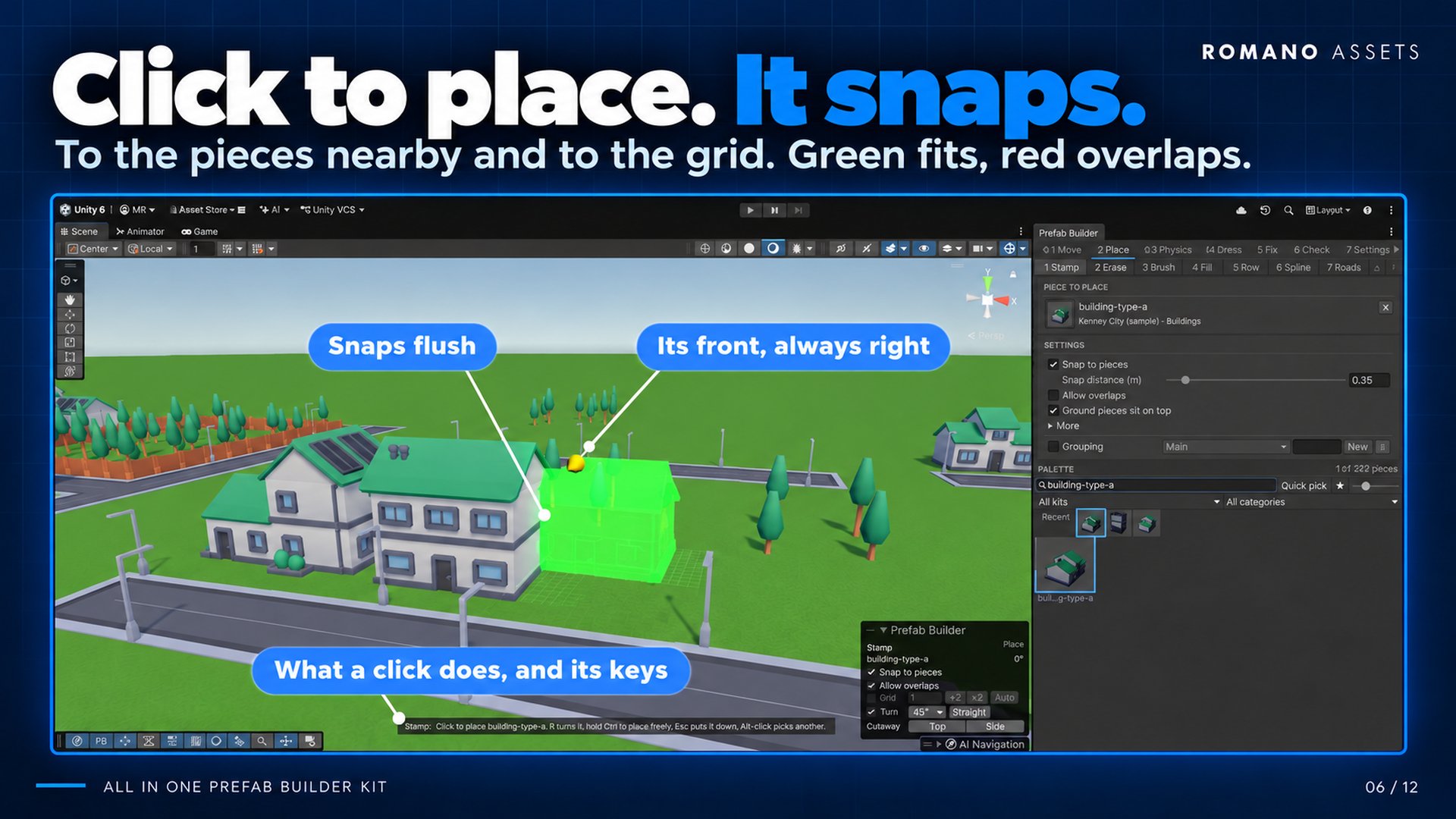
Places the active piece where you click.
- Pick a piece in the palette, or Alt-click a placed piece in the Scene view to pick it up (the eyedropper; an Alt-drag still orbits the camera).
- Move the mouse in the Scene view: a see-through ghost follows it over whatever is underneath. - Green: it fits. Red: it overlaps something (more than touching). - The yellow arrow points to the piece's front (set on the review screen).
- Click to place it. Keep clicking to place more. Where the ghost is red, Shift-click places it anyway, or switch on Allow overlaps (Stamp panel, the Scene overlay, or O while stamping) and every click places, red or not. Hold Ctrl (Cmd on macOS) to place freely, with no snapping.
- R turns it a Turn step (the line under the Grid row; 90° to begin with), Shift+R the other way: hold R and move the mouse sideways to turn it freely, any angle (it stays where it was while you turn it, and is back under the mouse when you let go). T tilts it a Turn step, its front down (Shift+T: up), all the way round if you like: on its foot, so nothing sinks into the ground; hold T and move the mouse to tilt it freely. While R or T is held, the line it turns about shows through it, with the ring it goes round: green for turning, red for tilting. Esc puts it down (with nothing held, Esc hands the Scene view to Unity's own tools).
These three keys only apply while stamping in the Scene view; the rest of the time R is Unity's Scale tool as usual. All are remappable (Settings > Hotkeys).
Each placement is one Undo step. The ghost is only drawn: it's never an object in your scene, so it can't be saved by mistake.
Snap to pieces and the grid #
Two separate switches: use either, both or neither:
- Snap to pieces treats pieces like Lego. Bring a piece near another, within the snap distance (0.35 m by default; the slider under Snap to pieces in the Stamp panel: bigger grabs from further away), and it snaps flush against it (side by side, or sitting on top), then lines up with it along that side as well as it can (its ends or middle level with the other's). Flat tiles work the same way: bring a road up to a road and it lies right beside it, lined up, even when part of it is over the other road's edge, it's pushed off to lie beside it (more than half over it, it goes on top). Only pieces really standing beside it count sideways: the tile a building stands on sets its height but never pulls it to the tile's edges. Visible boxes are used, so any prefab works with no set-up.
- It turns with what it snaps to: bring a piece up to one that's turned (a road laid at 30°) and it takes that turn and lies beside it along its sides. R still turns it, from there.
- Allow overlaps on: a piece pushed right into another (red) still lines up with it, as well as it can.
- The grid puts a piece's box edge on its category's grid (Settings > Rules > Categories), whatever its pivot, so tiles line up even when their pivots differ. Road and ground tiles use the kit's grid cell. Its bottom goes on the height step.
- Both on: snapping to a piece wins; the grid places the rest. Both off: a piece goes exactly where you point. Hold Ctrl (Cmd) to place freely either way.
- Rotation snaps to the rotation step.
Changing the grid #
The grid is the same for every tool that places things (Stamp, Brush, Row, Spline, Fill, Fence and Signs) so its Grid row is only in the Scene overlay (the Prefab Builder popup), in the same place for all of them: the last line, over the grey hint. It shows the grid of the piece in hand (Stamp's piece, the first picked piece, the sign board), and every tool follows it: Stamp's pieces and Row's first piece put their box edge on it (a piece narrower than the grid goes in the middle of the cell under the mouse), Spline's points and Fence's and Fill's corners go on it, Fill's spread pieces and the Brush's pieces go on its crossings (lines under the circle), and a sign stands on it. (Street and Closures are fitted to the road: no grid for them.)
- Its switch turns the grid off: apart from Snap to pieces, which (if on) still snaps a piece to the pieces nearby.
- ÷2 / ×2 halve and double it, or press [ and ] while stamping. Type a value in the field to set it exactly.
- A grid set this way is used for every piece (and for drops) until you click Auto, which goes back to each category's own grid.
- Turn (the line under it) is how far a press of R turns what you're placing, and T tilts it (5° to 90°; 90° to begin with). With its box ticked (as it starts), a press keeps it on those steps, after turning it freely, it goes onto the next step that way (from 50° on 90° steps: to 90°); unticked, a press turns it a step from wherever it is. Holding R or T and moving the mouse turns or tilts it freely, any angle. It works in Stamp, Row, Signs, Decals and the Physics tab's Stamp. Straighten beside it (or G) turns and tilts what you're placing back to none: straight on the grid again.
- Keep … (a line of its own under the Grid row, once you've set a grid) makes it the category's grid for good: saved in the rule set, or, for road and ground tiles, which follow their kit, as the kit's grid cell.
Faint grid lines show what it snaps to while you place: under Stamp's ghost and Row's first piece, round Spline's next point, a sign, and Fence's and Fill's corners (a small ring marks where a drag would start). Hold Ctrl (Cmd): free, no lines.
Switches (per person, in the Stamp panel, Row, Spline, Fence and Signs have Snap to pieces and its distance too: their points, corners and signs snap to the pieces nearby):
| Switch | What it does |
|---|---|
| Snap to pieces | Snapping to the pieces nearby, like Lego, turned the way they are (the grid has its own switch). The same switch, named the same, is in the Scene overlay: for placing and for kit pieces dragged into the scene (also Alt+Shift+L). Pieces moved with Unity's own tools are never re-snapped. |
| Allow overlaps | Click places even where the ghost is red (O toggles it while stamping). Shift-click always does. Snap to pieces then still lines a piece up with what it overlaps. Also in the Scene overlay. |
| Snap distance | Right under Snap to pieces: how far it reaches for a neighbour, a face within this snaps flush against it (saved in the rule set). |
| Ground pieces sit on top | Ground and road pieces sit just on top of the ground under their whole footprint (1 cm above it, at its highest point on a slope or terrain), so they never sink into it or flicker with it. Also in Row and Fill. On by default. |
| More | Random turn (±°: each stamp turned at random up to this much, on top of R), Random scale (each stamp scaled evenly at random between the two values) and Tilt to the slope (stand it square to the surface under it; never on terrain). The ghost shows the next stamp's turn and size; a new one is rolled after every click. |
Only kit pieces are ever snapped automatically: lights, cameras and your own objects are left alone. Snap the selection (the ⋮ menu, or Alt+Shift+G) snaps whatever is selected.
Brush #
Paints many pieces at once: grass, litter, rocks, trees.
- Click pieces in the palette to put them on the brush (click again to take one off). Each gets a weight (how often it comes up; 0 = never) in Multiple. With a Grouping picked, small pieces go down as scatter into it (and the rest whole, into it too); with none, every piece is placed whole, in its folder.
- Drag in the Scene view. The circle fills up to the density (pieces per 10 × 10 m); each piece is turned and scaled at random (More: random turn, random scale) and stood on whatever is under it. Pieces never crowd each other, and painting over a full spot only tops it up.
- Shift-drag erases the brush's pieces under the circle (with the brush empty: any scatter of the current group). The brush only ever erases pieces it could have painted.
- [ and ] resize the circle (also in the overlay); Esc hands the Scene view to Unity's own tools. Each stroke is one Undo step.
Brush and Fill share their settings: the same ones, with the same values: Density, Same floor type only, Allow overlaps and More (Random turn, Random scale, Only on the ground, Tilt to the slope), the Brush has its Radius besides. Change one in the Brush and the Fill uses it too. With Allow overlaps off, the brush never puts a piece where it would overlap something standing there (its own kind of pieces aside: those only need room); on, anywhere.
Density is pieces per 10 × 10 m, so a bigger circle holds more pieces at the same density; the small print under it says how many a full circle holds. (Fill and Street show the same under their density: how many for the area being dragged, the same number the Scene view shows, or along the selected roads.)
Same floor type only, tick it, or hold Ctrl (Cmd on macOS) while painting, keeps each stroke on the floor type it starts on: start on grass and the brush only paints on grass, never spilling onto the road or pavement next to it, however big the circle. The circle says which floor it's staying on. Floor types are the kinds of ground (Grass, Asphalt…), sorted by colour: see Floors & Terrain.
Only on the ground (on by default) paints only on floors with a floor type, and on terrain with terrain awareness on; never on roofs, cars or props. Tilt to the slope tilts every piece to the surface.
When a stroke paints nothing because the ground under it has no floor type, the Brush panel says so and offers the fix: pick a floor type and click Apply. For a kit piece this puts it in that floor type (kept as a hand edit through re-scans) and updates its placeable copy, so every one already placed changes too; any other object gets a Surface Tag.
Scatter #
A piece small enough for the rule set's scatter size (1 m tall, 1.5 m wide by default) goes down as a scatter copy:
a prefab variant in your data folder with no colliders, no shadows, on the small-props layer (Settings > Folders; if
the layer isn't in the project you're asked once whether to add it). Scatter is filed under
World/Scatter (source)/<group>.
Grouping ("Grass", "Litter"…): the group every tool shares (see Groupings); scatter needs one: with none picked, the brush paints whole pieces. Each group combines on its own.
Combine Scatter #
Combine merges the current group's scatter into a few meshes: one per chunk (the rule set's chunk size, 50 m by
default), one part per material: under World/Scatter/<group>. Thousands of objects become a handful.
- The originals stay in their folder, switched off and tagged EditorOnly (left out of builds).
- Un-combine takes the chunks away and switches the originals back on: to paint or erase more, then combine again.
- Combining again only rebuilds chunks whose pieces changed. Chunk meshes are files in your data folder
(
Combined Scatter/<scene>/<group>/). - ⋮: combine or un-combine every group; Cull scatter on the main camera adds a Layer Cull Distance to the main camera so it stops drawing the small-props layer past the rule set's cull distance (80 m by default).
A combined group can't be painted into (you're told to un-combine it first).
Picking pieces for Brush, Row, Spline, Fill and Fence #
These modes use the palette to pick their pieces. Pick: Single / Multiple at the top of each mode's panel:
- Single: one piece at a time: a palette click swaps the picked piece for the one clicked.
- Multiple: several pieces: a palette click adds the piece, or takes it out if it's already picked.
Alt-click a placed piece in the Scene view to pick it, just as a palette click would: in every tool with a palette (Stamp, Brush, Row, Spline, Fill, Fence, Erase, the Dress tools and Replace). An Alt-drag still orbits the camera. Or press Alt+Shift+Q and type its name (Quick pick).
Picked pieces are listed like Stamp's chosen piece: a picture of each, its name and settings beside it. With more than one picked, Clear (n) under the list takes them all out (so do the Closures and Street lists). Past three pieces the list scrolls: the mouse wheel over the list scrolls the list, over the palette the palette. In Multiple, each picked piece in Row and Spline has a dropdown for its role, Piece (the default), Start cap or End cap, and in Fence: Panel (the default), Post, Gate or Corner (or right-click a piece: Add as …). Switching between them clears what was picked. Row, Spline and Fence start on Single; Brush and Fill on Multiple. Picked pieces are highlighted in the palette. The weight slider (how often a piece comes up) only shows in Multiple: a single piece is the only one. A palette click always adds to (or takes from) the list; for a piece with a job of its own (a start or end cap, a fence post, gate or corner) set its dropdown (Multiple), or right-click it in the palette and choose Add as …. Hover over any button, box or slider for what it does. The keys (R, Esc, Z, X, Backspace) work while the mouse is over the Scene view, even if you last clicked the palette.
Row #
Pieces in a straight line: walls, fences, hedges, facades, a line of trees.
- Pick pieces in the palette (several are used in turn, or at random: More > Random order, shown once more than one piece is picked: mostly random: never three of the same in a row; New mix picks again). For the ends (a post, a corner, an end wall), switch to Multiple and set a piece's dropdown to Start cap or End cap.
- Before you press it works like Stamp: a ghost of the first piece sits under the mouse, snapped like a stamped piece (flush against a neighbour, else the grid), R turns it a Turn step (hold R and move the mouse to turn it freely), G (or Straighten) puts it straight again, and a click places just that one. Press and drag: the row starts on that piece, exactly where it stood, pressing never moves or turns it, and every piece is turned the way the ghost was, whichever way you drag. The rest line up from it toward the mouse, along X or Z with the grid on (hold Ctrl / Cmd for any angle): with the grid off, whichever way you drag. R still turns the pieces while you drag, all together, each where it stands (hold R: any angle, the row's end staying put until you let go). The pieces stand centred on the line, each as its model stands until you turn it: there's no side for them to face.
- Let go: the row is placed (one Undo step) and filed like stamped pieces.
- Spacing: end to end with a gap (negative overlaps), or one every so many metres (lights, trees, bollards).
- Same floor type only: pieces only go on the floor type the line starts on (a hedge along the grass never runs onto the road); pieces off it show red and are left out. Ground and road pieces are the floor themselves, so it never stops them.
- More: Count lays exactly that many pieces in the drag's direction. Gapped to fit, right under it (greyed out without a Count), spaces exactly that many evenly along the line you drag instead: equal gaps between them, the first at its start and the last at its end. Follow the ground stands each piece on what's under it.
- Allow overlaps (the same switch as Stamp's): pieces that really overlap something standing there show red, ground, roads and sidewalks never count, and are placed anyway with it on, left out with it off.
- Esc cancels a drag; with nothing to cancel, it hands the Scene view to Unity's own tools.
Spline #
A line through any number of points, curved or straight: fences, walls, hedges, lights or road pieces along a bend. It uses the same pieces, caps and settings as Row (its own copy of them): in the same order. Its More has Count and Gapped to fit too: with both, exactly that many pieces spaced evenly from the spline's first point to its last, equal gaps between them (a closed spline: all the way round, the last as far from the first as the others), and Curved.
- Pick the pieces in the palette.
- Click points in the Scene view. A curve runs through them with the pieces laid along it, each turned to the curve where it stands (untick More > Curved for straight lines between the points).
- Z lays it as it is, so does clicking its last point again, a double-click, a right-click, or Lay it (in the Scene overlay). X (or clicking the first point again, or Loop) joins the end to the start and lays it. Backspace (or Clear) drops the points.
A laid spline is an object in its first piece's category folder (or the group) with its pieces inside it, and it stays editable: select it, or any of its pieces, with Spline on, and:
- drag a point to reshape it (it stays on the ground right under the mouse, looking past the spline's own pieces); click to add a point at the end; Ctrl-click a point to remove it;
- change any layout setting: Curved and Closed loop are under More, and it has a Allow overlaps of its own; R turns which way its pieces face;
- Use the picked pieces lays it with the pieces picked in the palette instead; Lay again re-lays it after things around it moved.
Each change lays it again, touching only the pieces that move (the rest stay exactly where they are), in one Undo step. Done (or Esc) stops editing. Tidy scene folders leaves a spline's pieces in the spline. The spline keeps its points on a small World Builder Spline component (data only; remove it and the pieces stay as they are).
Fill #
Like the brush, over an area: pick pieces, choose what to fill, and it's filled with them. What it fills, the row of buttons at the top of its settings (and in the Scene overlay):
- Area: the rectangle you drag.
- Selection: the outline of what's selected, click things in the Scene view (Shift or Ctrl adds more); an L-shaped lot stays an L, things apart are each filled, Margin metres past its edges (0: exactly its outline; negative: that far inside them). The yellow outline and the ghosts show it; Fill the selection fills it.
- Around the selection: round the selection, leaving it out, around buildings, never over them. Click things to select what to leave out; Fill round the selection fills Round it metres round it (its bounds, drawn in green, so it never runs on for ever), or drag your own rectangle round it as the bounds. Margin keeps it that far clear of the selection (outlined in orange). Fill: Outside / Inside, Outside fills round it; Inside fills what the selection closes off: a fenced yard, a walled courtyard, the middle of a ring of buildings (Fill inside the selection). Every selected piece counts on its own (each fence panel, each wall), and gaps a little narrower than 1 m count as closed; if nothing is closed off, you're told (look for a gap).
Only on the ground (More) decides whether the spread pieces go only on the ground, or also on top of what's there: a selected building's roof included. Same floor type only keeps a drag to the floor it starts on; with Selection, to the floors you selected (a selected grass tile: only that grass, never the ground round it), for selected things that aren't floors, and Fill round the selection, the floor right beside them.
When pieces find no room, the message says why: no ground with a floor type under them (Only on the ground), another floor type (Same floor type only), something standing there (Allow overlaps off), or the area is full at that density.
- Pick pieces in the palette: each with a weight (how often it comes up) in Multiple. Ground and road pieces tile the area; the rest is spread over it: small pieces as scatter when a Grouping is picked, else every piece whole.
- Drag a rectangle (or Fill the selection). Tiles are laid in cells the size of the biggest tile, lined up with tiles snapped into place: never over ground that's already tiled, nor, with Allow overlaps off, where something stands (those cells show grey; with it on, they're tiled too, their ghosts red). Everything else is spread over the area to the Density (pieces per 10 × 10 m; the small print under it says how many, as the Scene view does), never on top of each other: nor, with Allow overlaps off, on top of what's already there. Same floor type only keeps the spread pieces on the floor type the drag starts on; More turns and scales them at random, keeps them on the ground and tilts them to the slope. These are the Brush's settings, shared (see Brush).
- Let go: one Undo step. With a grouping, what's spread goes into it, so it combines with it. Filling the same area again never tiles it twice.
Erase #
Drag the red circle over the Scene view: the kit pieces under it are removed (the number before its name in the tool bar picks it).
- Nothing picked: every kit piece under the circle. Pick pieces in the palette to erase only those (Single or Multiple, as in the other tools).
- Category erases only pieces of one category (Any: every category).
- Leave floors (on by default) never erases ground and road pieces: clearing the litter off a street never takes the street with it.
- A piece is under the circle when its middle is inside it, or when the circle is on its footprint: aim at a roof and the building goes. Pieces on a floor far above or below the circle are left alone.
- Only kit pieces are ever erased: your own objects, lights, cameras and folders never are, and nor is anything inside a kit piece on its own.
- Radius sets the circle's size. One Undo step per stroke.
(The Brush's Shift-drag still erases what the brush painted; Erase is for everything else.)
Roads #
Draw a road and the right tiles go down: straights, corners, T-junctions, crossroads and dead ends from your kit, each turned the right way (the number before its name in the tool bar picks it).
- Drag across the ground: the road follows the mouse a cell at a time (the cell under the mouse is outlined; the road so far shows as you draw it). Drag back over it to undraw; Esc stops. Let go and it's laid: one Undo step. Drawn round a block, ending in the cell beside where it began, it closes up: a loop all the way round.
- It joins the roads already there: start on a road, end on one or cross one, and the tile there becomes the junction or crossroad it now is. New tiles line up with the roads nearby, edge to edge.
- Dead ends (on by default): a road's ends take the dead-end tile. Off: the straight carries on to the end of the cell.
Road tiles (the panel's top) shows the kit drawn with and the tile used for each shape. The tiles are the kit's flat, square road pieces, sorted by which sides their road runs out of, read from their kerbs: the raised pavements line the sides a road doesn't leave by. For each shape the plainest-named tile is used first (road-bend before road-bend-barrier); choose another in its dropdown, or click a road tile in the palette to use it for its shape. A shape the kit doesn't have is drawn with the next one up (a dead end as a straight, a corner as a T-junction). Big pieces (long curves, roundabouts) are left to place by hand; a road drawn up to one joins it.
Tool presets #
Brush, Fill, Row, Spline and Fence can keep their settings and picked pieces by name: a "Grass brush", a "Tree line", a "Garden fence", and use them again in one click. Presets ▾ on the tool's Settings card:
- Save these settings as...: type a name, then Enter (or Save). A preset of the same name is replaced.
- Click a preset's name to use it: the picked pieces and every setting come back as they were saved.
- Delete removes one.
Presets are kept per project. (A Fill preset keeps the Brush's shared settings too: density, turn, scale, Same floor type only.)
Re-roll and Select what was just placed #
Not happy with the mix? After a Fill, a Brush stroke, a Row, a Spline or a Physics Drop, press N (or Re-roll in the Scene overlay) to lay it again in the same place with a new random mix: one Undo step, and press it again for another. Shift+N (or Select) selects what was just placed, to move it, file it or delete it.
- Fill lays the very same fill again (same area, pieces and settings). Brush paints the same stroke again: the same dabs: with the brush's pieces and settings as they are then, so you can change the density and re-roll.
- Row and Spline pick their pieces again in a new random order: this needs Random order on and two pieces or more (otherwise there's nothing random to pick, and only Select works).
- A Spline stays the same object and lays its pieces again; everything else is removed and placed again.
- Re-roll works while everything it placed is still there: once some of it is deleted, erased, combined or undone, only Select is left (for what remains).
- The keys work while a Place tool is the mode and the Scene view has focus; change them in Edit > Shortcuts.
Building prefabs (Prefab Mode) #
Every tool works inside Prefab Mode too: open a prefab (double-click it in the Project window, or its arrow in the Hierarchy) and Stamp, Brush, Row, Spline, Fill, Fence, Erase, the Dress tools and the Fix tools build inside it, a building, a furnished room, a street corner, saved with the prefab and reusable anywhere.
- What's placed goes under the prefab's root (in its category folders there, or the group), never into the scene behind it.
- The tools aim at the prefab's own ground and snap to its own pieces; the scene behind (Prefab Mode's "In Context") is only for looking at: it's never snapped to, erased or changed.
- Nothing can replace or erase the prefab's root itself.
- Save it as Unity does (Auto Save, or Save at the top of the Scene view); back in the scene, place it like any prefab: add it to a kit (drop it on the palette) to place it with the Prefab Builder.
Groupings (every tool) #
One grouping for every tool. Under the settings of Stamp, Brush, Row, Spline, Fill and Fence, and Dress > Closures, Grouping picks the group what you place goes into (World/Scatter (source)/group; pick one, or type a name and click New). It's the same setting everywhere: pick "Market" in Stamp and what you brush, lay, fill, fence or close goes into "Market" too, so it all combines together.
- Combine merges the group into a few meshes, one per chunk and material, and Un-combine brings the pieces back to change them. Combining keeps the pieces' colliders (copied into the combined group), so a fence or wall stays solid.
- ⋮: combine or un-combine every group (and, in Brush, cull scatter on the main camera).
- The Grouping switch turns grouping off (or on again) without losing the picked group: off, every piece is placed whole and files into its folder as usual. Scatter (the brush's and fill's small pieces) only happens with grouping on.
Scrolling #
The picked pieces and the settings scroll on their own: the pick list past three pieces, the settings past eight lines (or half the Prefab Builder window, if that's less). Settings that grow past that (More opened, say) are hidden below straight away: scroll down for them; the palette never jumps. The mouse wheel scrolls whatever it's over: the pick list, the settings or the palette, so the palette always keeps its room.
Auto-parent #
A placed or dropped kit piece files itself under its category's scene folder: World/Buildings, World/Props… (Settings >
Folders: the root and one folder per category). Missing folders are made: plain empty objects at 0,0,0, scale 1. A piece
dropped into something in the Hierarchy stays where you put it. Objects with a component type listed under never
re-parent (networked objects, for example) are never moved.
- Floor type folders: every piece with a floor type files under the Ground folder, in its floor type's folder,
World/Ground/Grass,World/Ground/Wood(Settings > Folders > Floor folders; off: its category's folder). Road pieces go in a Roads folder inside their floor type (World/Ground/Asphalt/Roads); closures go in a Closures folder inside the Roads folder of the road they close. - Piece folders: copies of a piece go in a folder named after it,
World/Ground/Grass/Grass_Tile/…,World/Props/Bench_01/…(Piece folder count: 1 = from the first copy, 2 = once there are two, 0 = never). - Touching folders: copies of the same piece that touch each other (a field of grass tiles, a run of fence) share a
numbered folder inside the piece's folder:
Grass_Tile/Grass_Tile (1)/…; a separate field getsGrass_Tile (2). A copy touching nothing stays in the piece's folder. Lay a tile that joins two fields and their folders merge (Touching folders switches this off). - Tidy scene folders (the window's ⋮ menu, or Settings > Folders) files every placed kit piece in the open scene again: for scenes built before these folders, or after moving pieces by hand (fields that were pulled apart split again). Pieces put inside objects of your own are left alone. One Undo step.