
Check Tab
Check what's placed: clipping, the rule set's rules, play from a spot, measuring and a performance readout.
Clipping #
Finds placed pieces that go into each other.
- Whole scene checks every placed piece in the open scenes (or the prefab being edited); Selection only what clips into the selected objects.
- Tolerance (cm): overlaps thinner than this are fine. Pieces snapped flush only touch, so they never count.
- Left out: floors (what things stand on, Fix > Floating finds what's sunk into the ground), scatter, and the pieces of one fence, closure or spline (they meet by design). Count trees and plants adds trees and plants, whose crowns often meet.
- Where both pieces have colliders, their real shapes decide (an L-shaped building's box overlaps what stands in its corner, its walls don't); otherwise their boxes do: the list says (by box).
- Check lists them deepest first and outlines each overlap in red in the Scene view. Click a line to select both and frame them (yellow). Push apart moves the smaller one out of the other the shortest way: sideways or up, never down; Push all apart does every one and checks again. One Undo step each. Select all selects every piece listed.
Validate #
Checks the scene (or the selection, measured against everything round it) against the rule set's rules, set in Settings > Rules, so nothing here assumes a game:
| Rule | What's found |
|---|---|
| Spacing | Two pieces of a category closer than its smallest gap (Min spacing). |
| Setback from the road | A piece nearer the road than its category's smallest setback, or, with a road within 50 m, further than its largest. |
| Triangle budget | A piece over its category's triangle budget (once per piece, however many copies). |
| Heavy scatter | A scatter piece over the scatter budget: every copy counts. |
| Crowded cell | More props in one grid cell (the kit's cell) than the budget. |
| Mixed styles | Kits of different styles placed within the style radius (an error when the rule is set to Block). |
| Not static | A piece whose category is static (batching, occlusion, baked light) that isn't marked Static. |
| No lightmap UVs | A static piece lit by lightmaps whose model has none: tick Generate Lightmap UVs in its import settings. |
The findings are listed by rule (open one to see them; Select these selects them all) and marked in the Scene view: amber for Warn, red for Block. Click a line or a marker to select and frame it; its message shows over it.
Play #
Click a spot in the Scene view and Play starts there: the player, the first object with the Player tag (change the tag in the panel), is put on the spot standing on it, facing the way the Scene view looks. With no player, the Main Camera goes there at eye height (from the Character Profile).
- Start Play (on): off, the player is only put there.
- Put back after playing (on): when Play ends, the player (or camera) goes back where it was.
- My game places the player: the kit moves nothing; your own spawn code reads the spot from
AllInOneWorldBuilder.PlayFromHere(HasSpot,Position,Rotation) while playing in the Editor (it's never set in a build). See Extending. - Not in Prefab Mode: Play runs the scene.
Measure #
Click points in the Scene view: two, or as many as you like along a path: every click adds a point, and each leg's length shows on its line (a dotted line shows the next leg to the mouse). The panel (and the Scene overlay) adds them up and says how long it takes to walk, run or drive, at the Character Profile's speeds (Settings > Rules), and, when the points aren't level, how far it is along the ground and how far up or down. Backspace takes the last point off; Esc (or Clear) starts over. Points land on anything under the mouse, models without colliders too.
Performance #
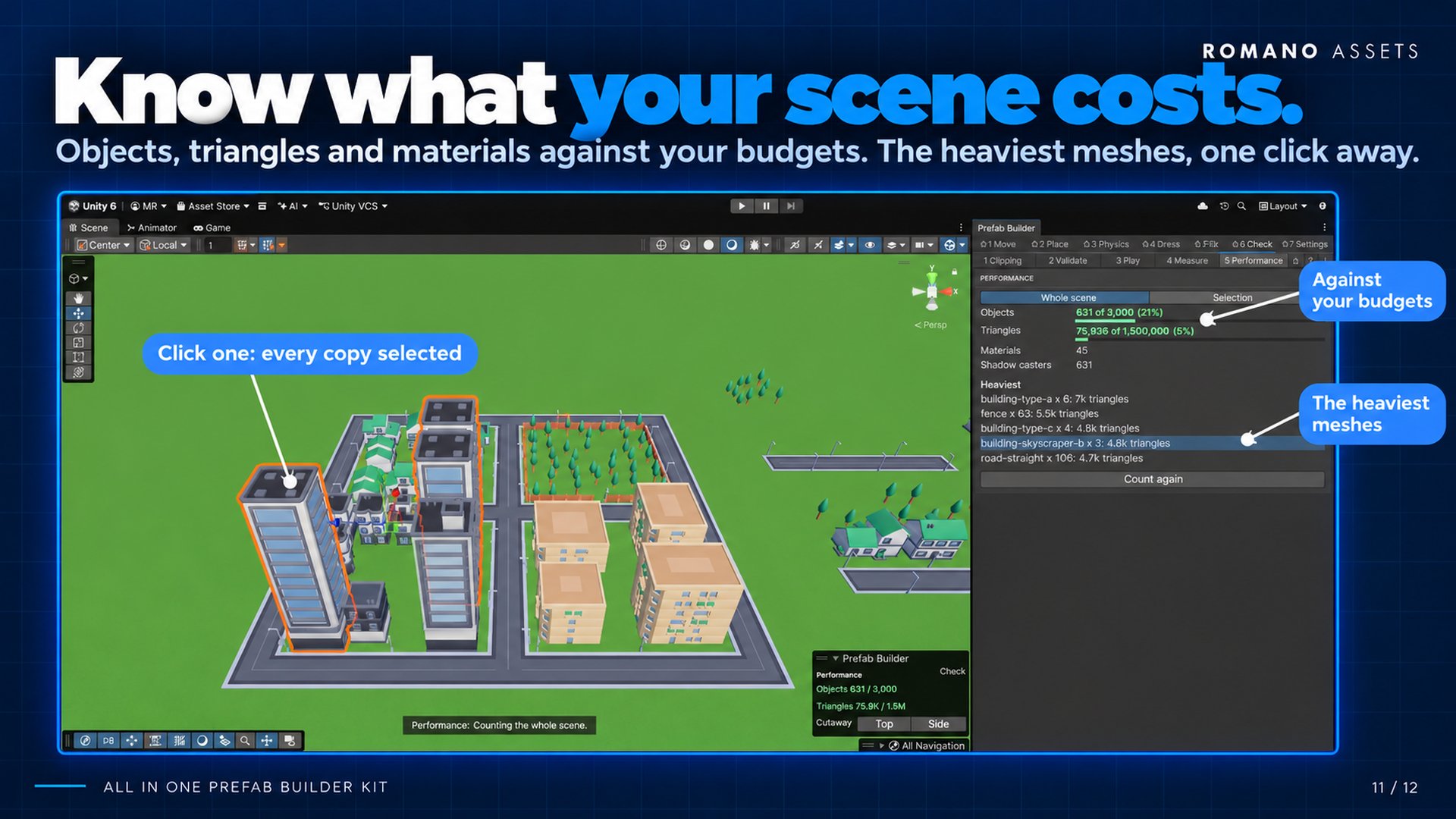
What the whole scene, or only the selection, costs to draw, against the rule set's budgets (Settings > Rules > Performance):
- Objects and Triangles against their budgets: green, amber past three quarters, red over. A LOD group counts its most detailed level only.
- Materials (fewer means fewer draw calls) and Shadow casters (each is drawn again for the shadows).
- Heaviest: the meshes that cost the most triangles, with how many copies, click one to select them (Fix > Replace can swap them for something lighter).
The counts update as the scene or the selection changes (and Count again counts now); the Scene overlay shows the two budgets.